
An MT4 trading journal that syncs by server name — no EA, nothing to install
For MetaTrader 4 traders at XM, Exness, ATFX and the long tail of smaller brokers: every trade arrives with its stop, target, swap and commission. Read-only — TradeBB can see your history, never touch a trade
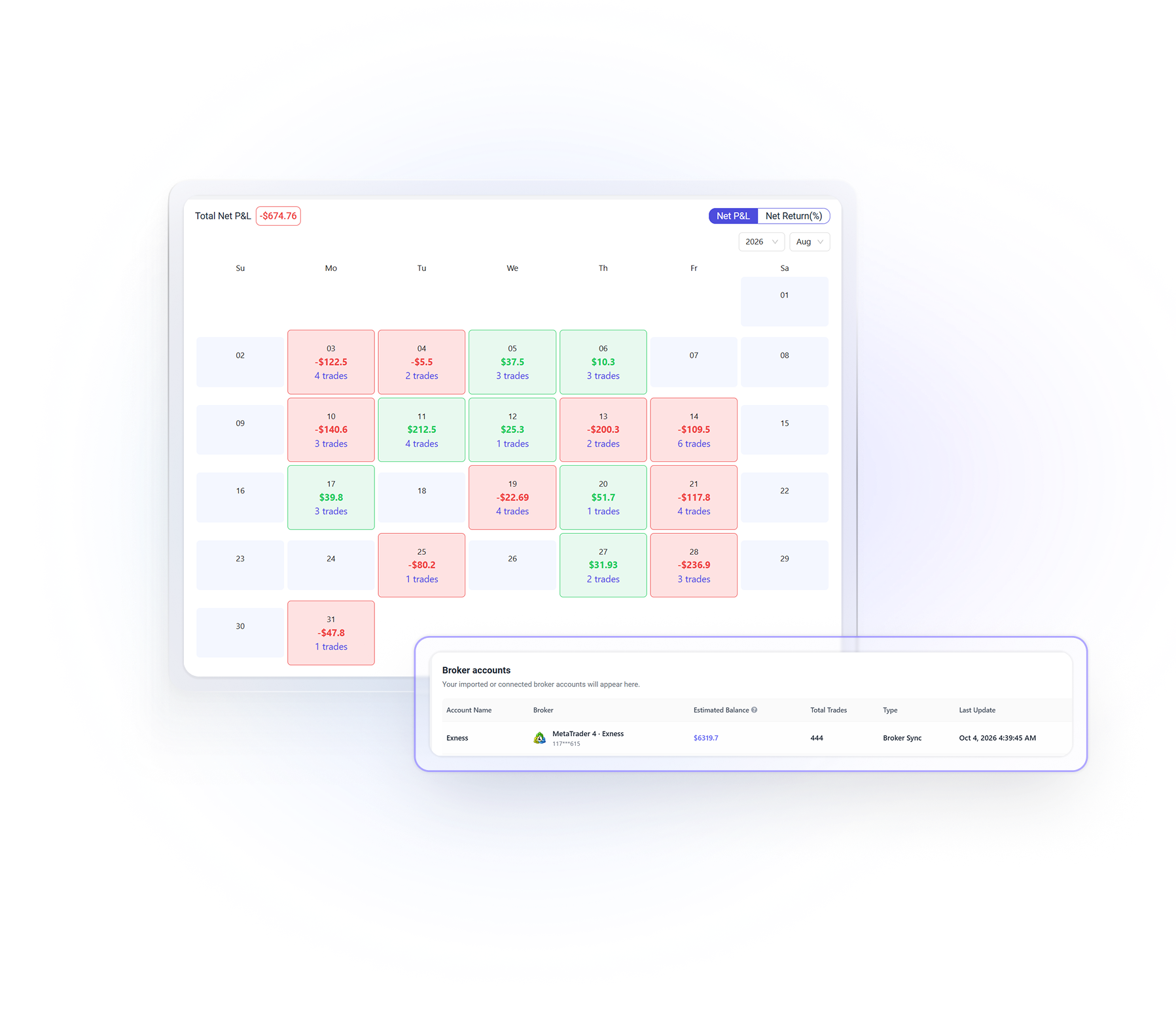
Set it up once. Then it
syncs on its own
TradeBB connects to your broker's MT4 server with a read-only login. Set it up once; after that, it syncs on the schedule you choose — or sync by hand right before a review. The Last Update time shows when it last synced
Server name
Under Accounts in MT4's Navigator, e.g. XMGlobal-Real 3
Investor password
In your broker's welcome email; read-only by design
Nothing to install
No Expert Advisor, no script, no plugin
MT4 can stay closed
The connection is to your broker's server
Your schedule
Choose how often it syncs, or sync by hand
No statement to export, no file to find — the new trades are in before you sit down to review
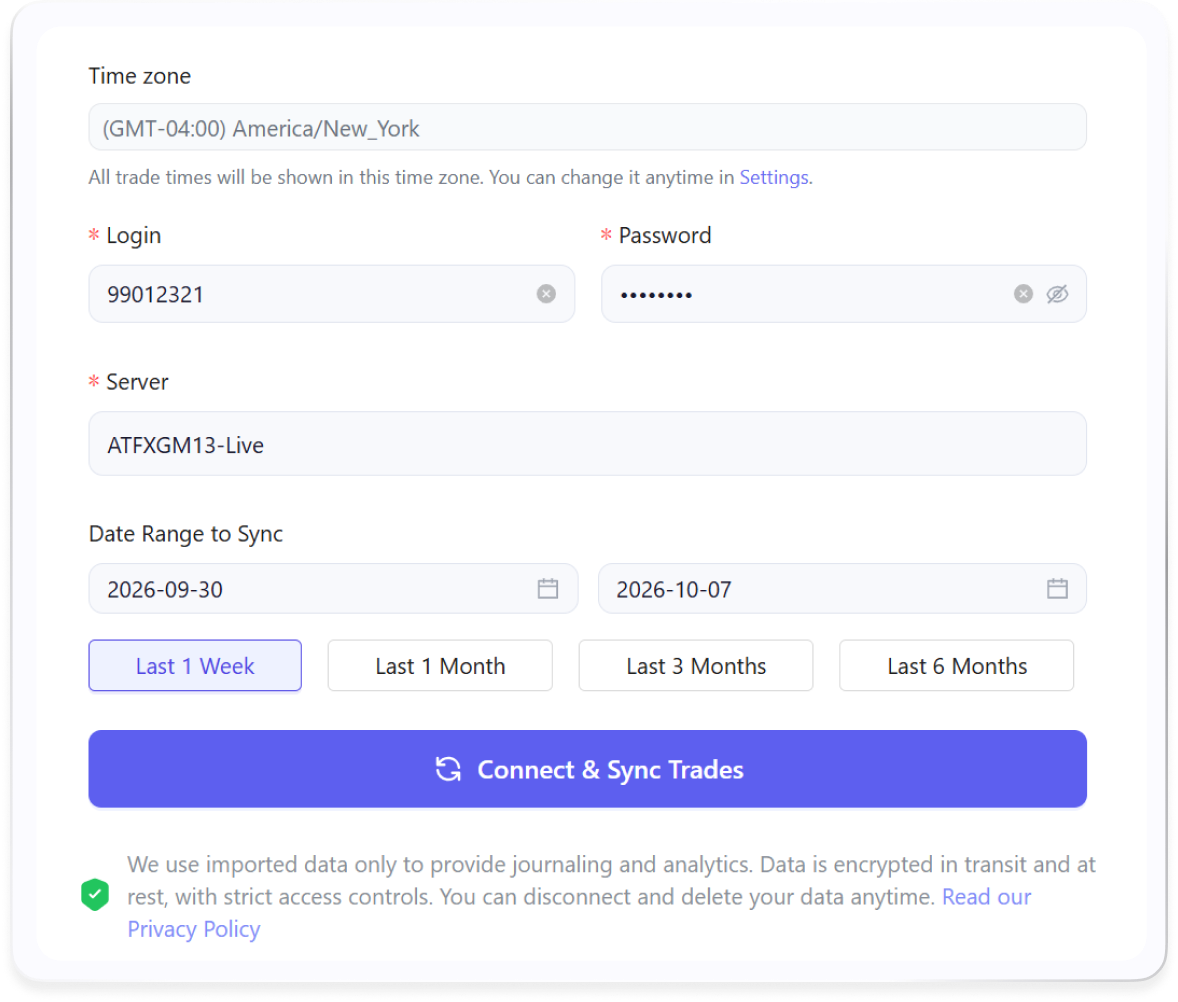
Have the investor password?
Small MT4 broker?
It almost certainly still works
MT4 is run by a very long tail of brokers — many regional, some you'll never see on an integrations list. TradeBB doesn't need them there: it connects by server name, the same name your terminal shows. Exness and XM are the two brokers traders name most often when they join TradeBB, and both connect this way
- Verified— ATFX, XM and Exness, including their regional servers
- Not listed by brand?— search for your server name instead
- Prefer not to connect?— upload an MT4 statement instead; steps below
- Also on MT5?— add it as a second account, same steps
- Not on MetaTrader at all?— upload your file; Any Broker (AI) reads it
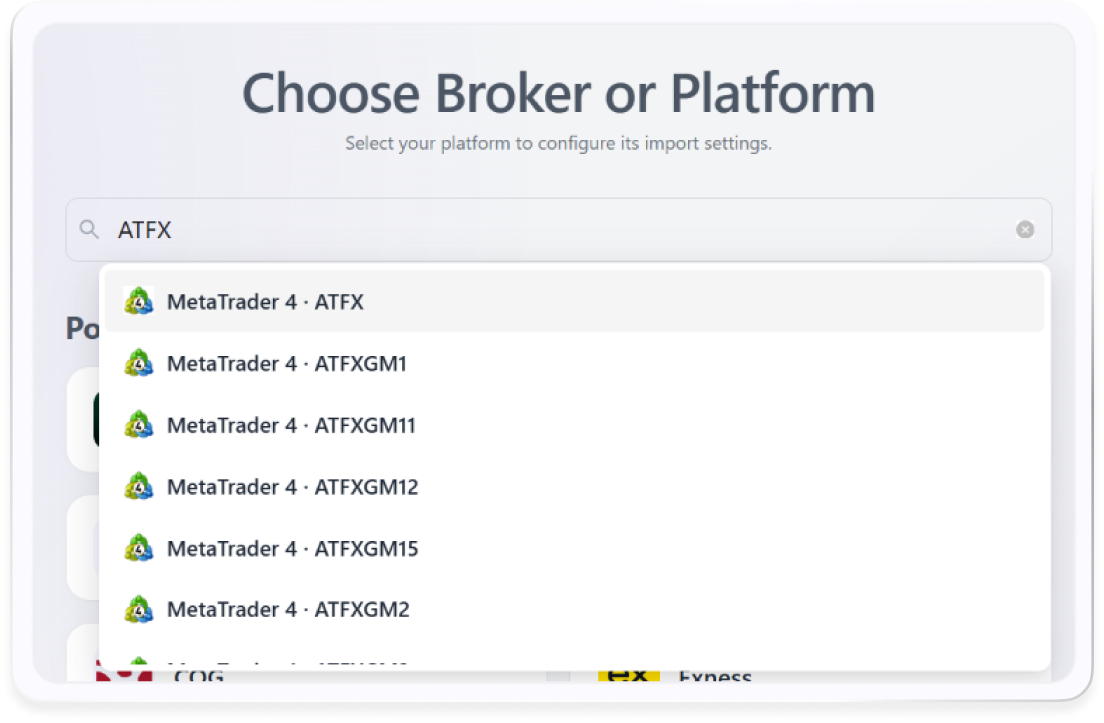
Small, regional or new isn't a reason your broker won't work
Rather not connect?
Upload an MT4 statement or backtest
If you'd rather not link a live account, MT4 can save a report and you drop it into TradeBB. A few more steps each time — and nothing of yours stays connected in between
Your trade history
- In MT4, open the Terminal window and click the Account History tab
- Right-click and pick the period — All History, or a custom range
- Right-click again → Save as Detailed Report
- In TradeBB, open Import Trades → Upload file and drop it in
A backtest
- Same idea — Strategy Tester → Report tab → right-click → Save as Report
- Keep it in its own account — so backtests never mix with live trades
- Next to your live account — see whether the EA trades the way it tested
TradeBB reads the backtest; it doesn't run one. Either way, you get the same journal as the traders who connect — you just decide how much stays linked
Stop, target, swap and commission — on every trade
Every closed trade arrives with what MT4 records: the pair or symbol, lots, entry and exit price and time, the stop loss and take profit you set, commission, fees, and swap as its own number
So the number in your journal is the number in your account
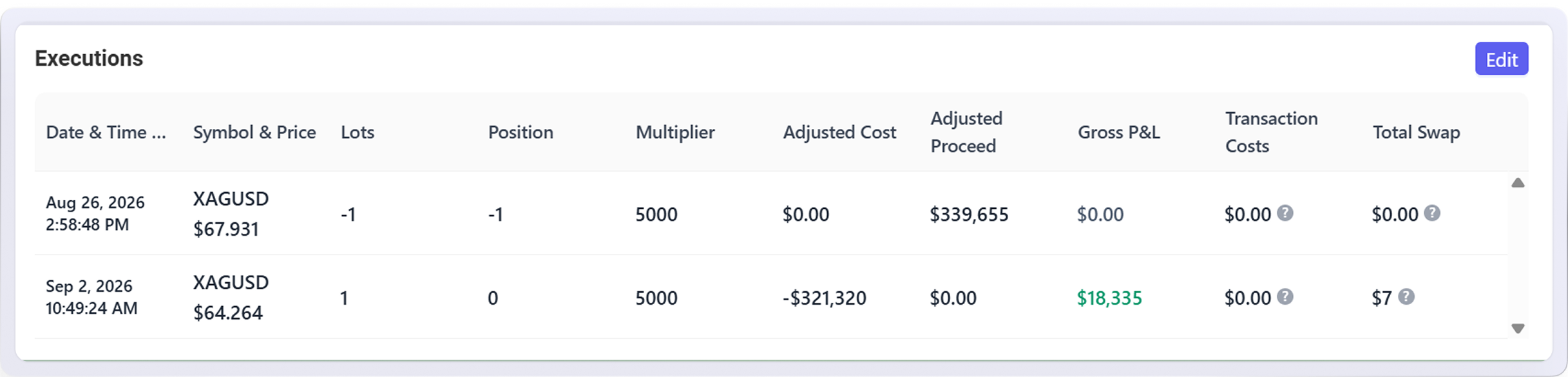
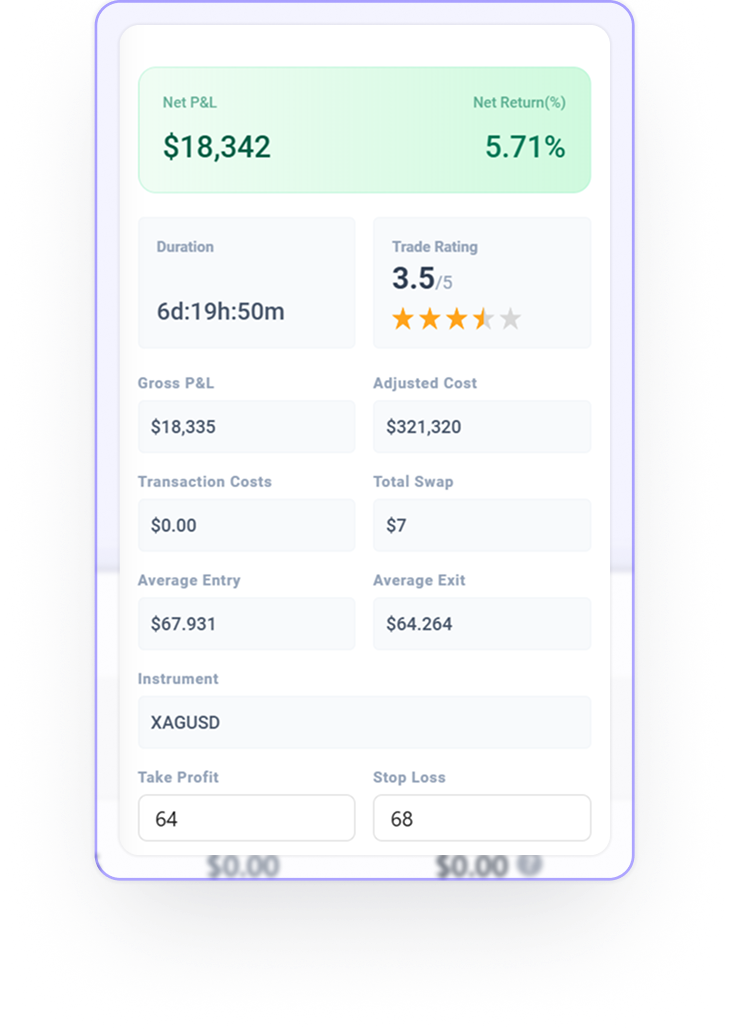
Stop and target included
The levels set on the trade, no retyping
Swap, separately
what holding overnight cost or earned you
Commission as reported
Empty if your broker builds it into the spread
Deposits stay out of P&L
A top-up never looks like a winning week
Pips on currency pairs
In each trade's detail, beside the net result
Trade with an EA?
Its trades come in too
Trades your Expert Advisors place import exactly like the ones you place by hand — TradeBB reads the account's history either way. To tell them apart, tag them with a strategy, and the Strategies report puts the EA's results next to yours
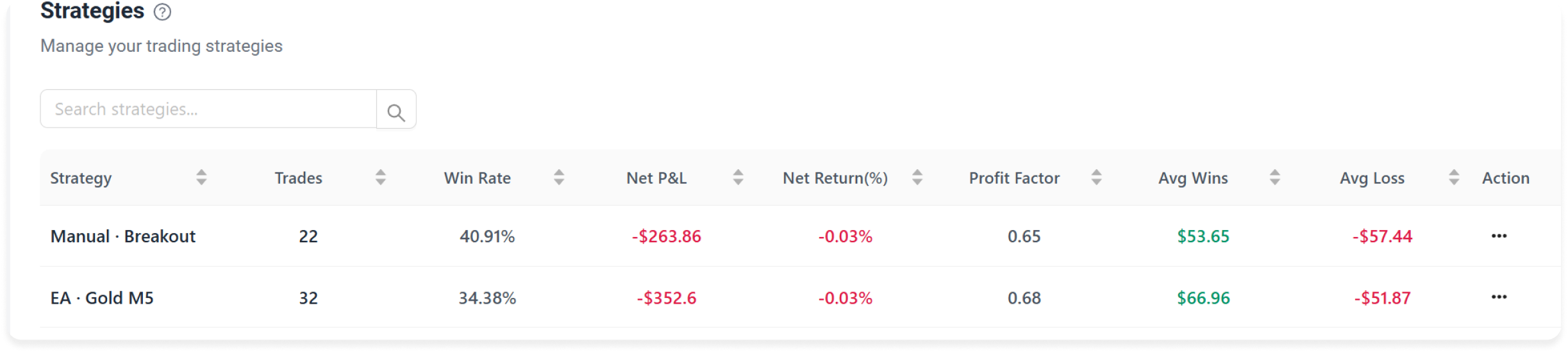
Put the EA's numbers next to your own. That's usually the comparison worth seeing


One history
EA trades and manual trades, imported together

Tag by strategy
One per EA, or one for all of them

Side by side
Automated against discretionary, same costs counted
Then find out where the money actually went
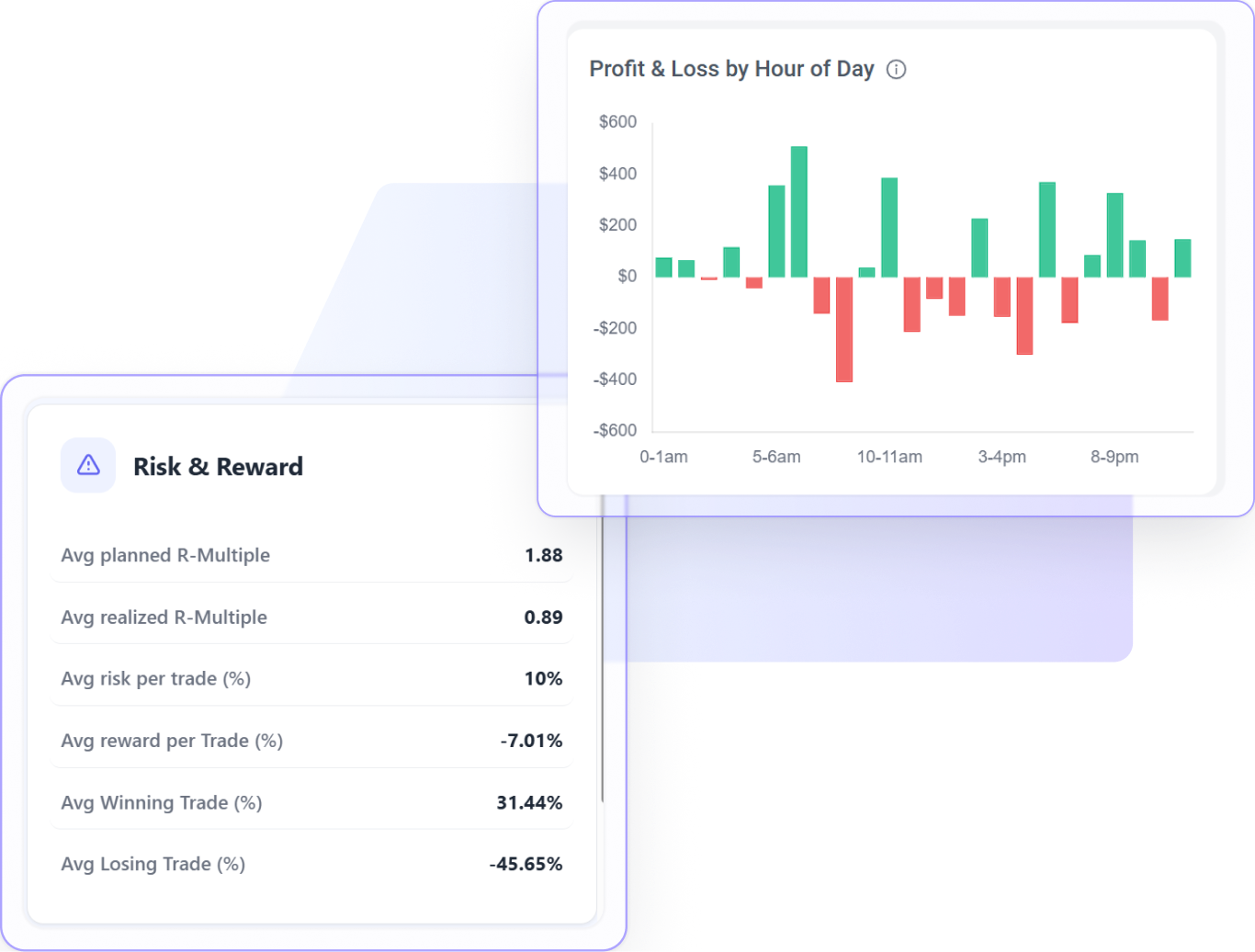
Once your MT4 trades are in, the trading journal does what MT4's Account History tab can't: it shows where each result came from
By pair and by hour
In your time zone, not the server's
Planned vs actual risk-reward
From the stops and targets already there
Mistakes that repeat
Tag moved stops or revenge trades, and see what each cost
Consistency, trade by trade
One to five stars on how you took each trade
For pairs, gold and sessions in depth, see the forex trading journal. Trading MT5 too? The MT5 trading journal page has the MT5 steps
FAQ
Questions about connecting MT4, syncing your trades, or importing statements and backtests? Find your answers here
Yes. With your investor password, MT4 itself only allows TradeBB to read your history — it cannot open, modify or close a trade.
In MT4's Navigator, under Accounts — your account is listed beneath the server it's on. It's also in File → Login to Trade Account. It looks like XMGlobal-Real 3 or Exness-Real.
No EA, no script, no plugin — and MT4 can stay closed. The connection is made to your broker's MT4 server, not to your computer.
Your investor (read-only) password. A trading password also connects, but TradeBB only reads your history, so there's no reason to hand it over.
On the schedule you set, and any time you sync by hand — each sync pulls in every trade since the last one, and the Last Update time shows when that was. It isn't a live feed, and there's nothing to export or upload.
You choose the date range before the first sync, up to the last 12 months.
Yes. Save a Detailed Report from the Account History tab, or a report from the Strategy Tester, and upload the HTML file. Keep backtests in their own account so they never mix with live trades.
Some MT4 brokers build commission into the spread instead of charging it separately. TradeBB records what your broker reports, so if there was no separate charge, there's nothing to show.
No. The Journal tab in MT4's Terminal window is the platform's log — logins, connections, order messages. A trading journal is your closed trades, with P&L, swap and commission, and your own notes on each one. In MT4, your trades are in the Account History tab.
Yes. Add each account separately — they can be at different brokers — and review them together or one at a time.
Myfxbook is built to show how an account is performing and to share a verified track record publicly. TradeBB is built for reviewing your own trades: a note, tags and a rating on each one, results by setup, hour and pair, and stock and futures accounts alongside MT4. If you need a public, verified track record, that's Myfxbook's job — TradeBB doesn't publish one.
Connect MT4 once
Let the journal keep itself
The next time you sit down to review, the trades are already there — stop, target, swap and all. Your time goes on what to fix