

Importing your trades is the first step to getting value from TradeBB.
Once your trades are imported, TradeBB can automatically organize your trading history and generate performance reports across your account.
This guide uses Charles Schwab as an example, but the overall process is similar for most supported brokers.
Watch the Video Tutorial
Prefer a walkthrough?
Watch the short video below to see the complete import process from start to finish.
Step 1: Click Import Trades
From the main navigation, click the Import Trades button.
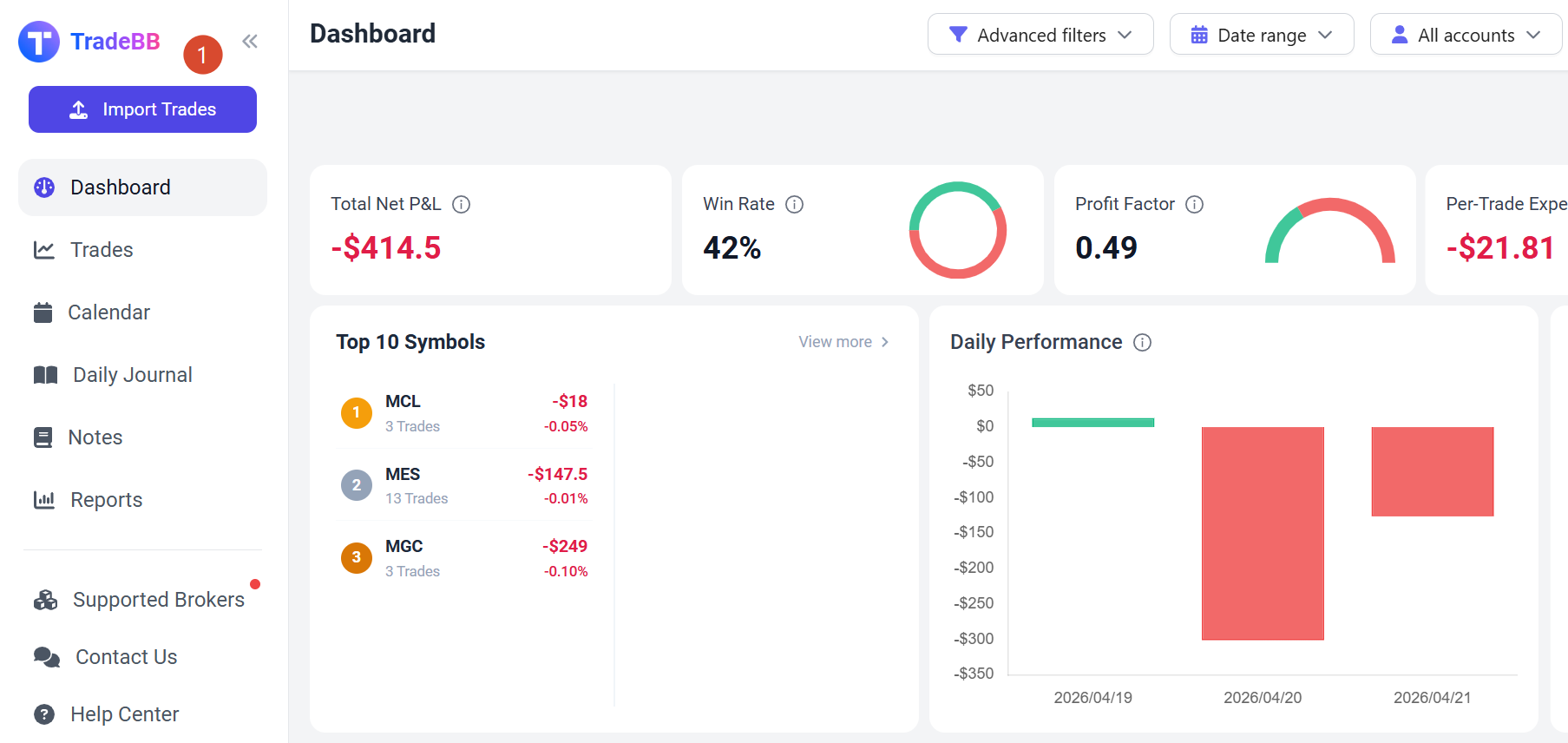
This will open the broker account management page.
Step 2: Add a Broker Account
Click Add Broker Account.
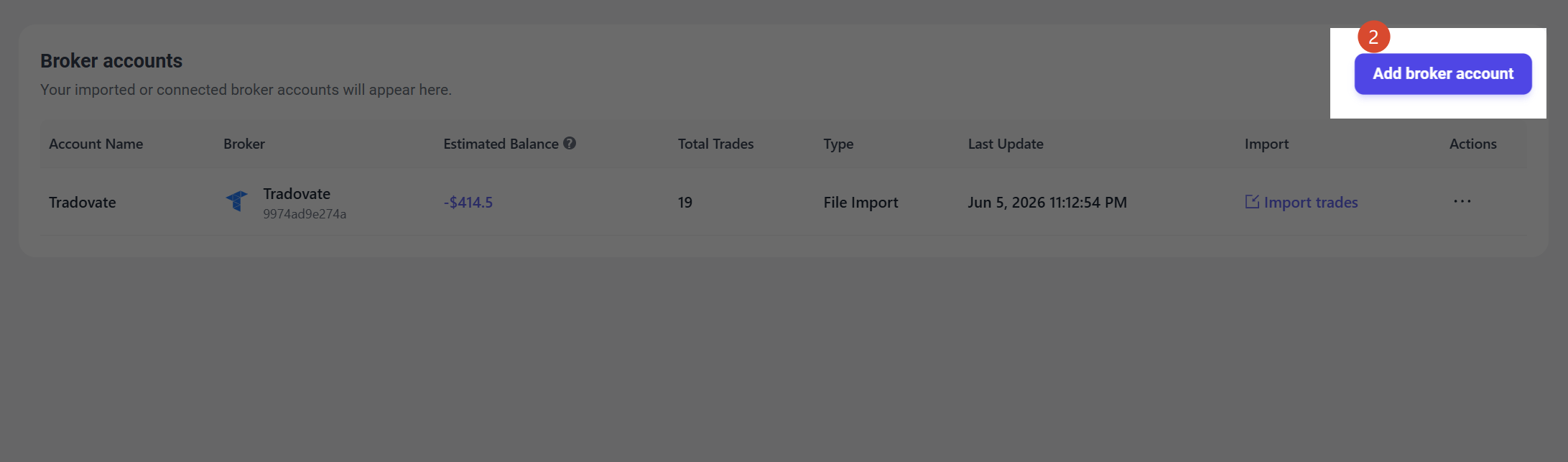
You can connect multiple broker accounts to the same TradeBB account and manage them separately.
Step 3: Choose Your Broker
Search for your broker and select it from the list.
In this example, we will use Charles Schwab.

If your broker is not listed, you can also try:
- Any Broker (AI)
- Generic file import options
- Contacting our support team
Step 4: Upload Your Trade File
After selecting your broker, follow the export instructions shown on the left side of the screen.
Then upload the exported file using the Import File button.
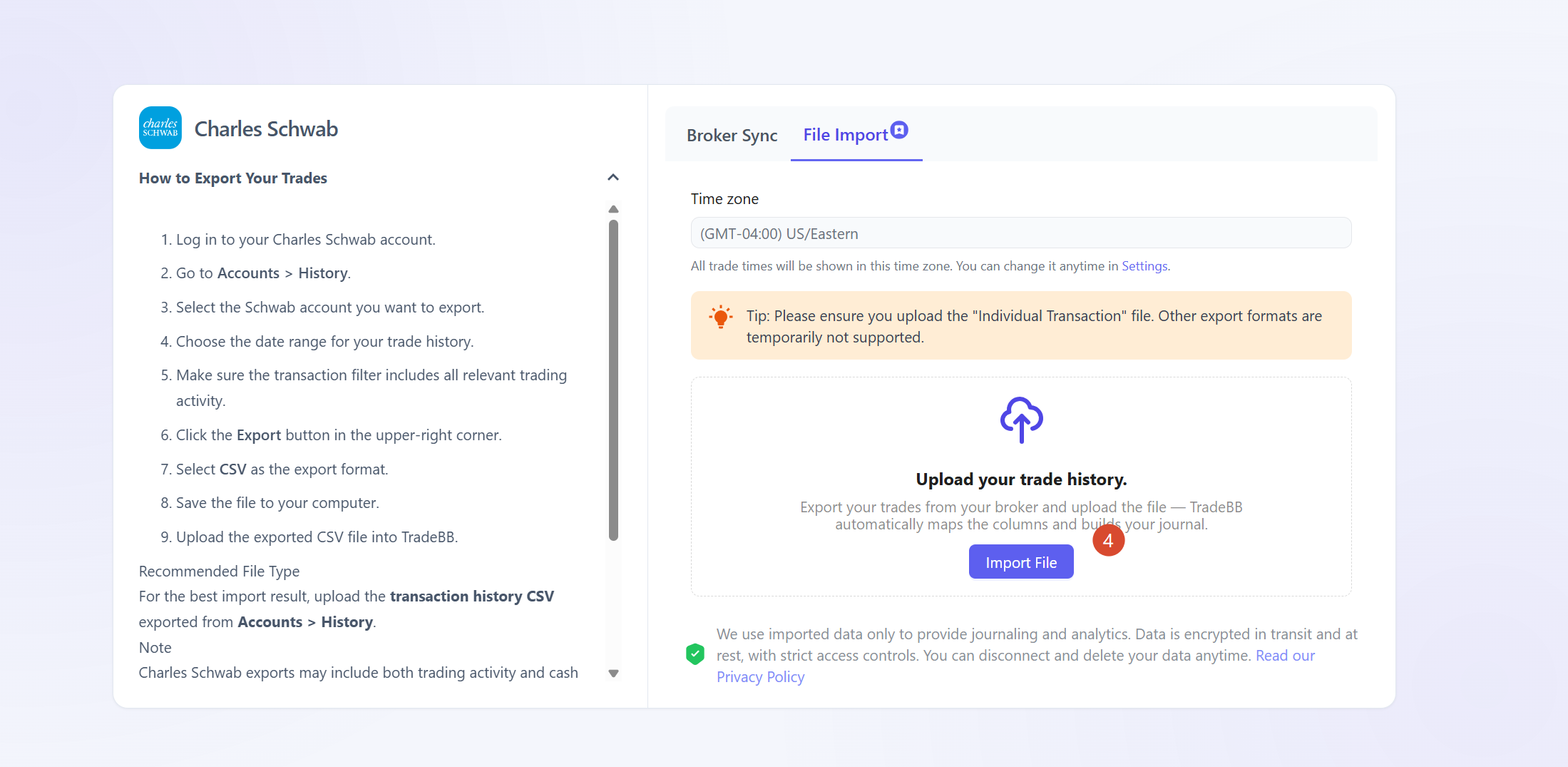
TradeBB automatically parses the file and imports your trades.
For brokers that support direct connections, you may also see a Broker Sync option instead of file upload.
Step 5: Review Imported Trades
After the import completes successfully, your trades will become available throughout TradeBB.
You can review them in:
- Dashboard
- Trades
- Calendar
- Reports
We recommend checking a few imported trades to confirm that symbols, quantities, prices, and timestamps were imported correctly.
Track Upload Status
If you imported trades using a file upload, you can review your upload history at:
Settings → Trade Files
There you can see:
- Import status
- Imported rows
- File size
- Upload time
- Broker name
This is also the place to troubleshoot failed imports or remove previously uploaded files.
What If My Import Fails?
Occasionally brokers change their export formats, which can cause uploads to fail.
Common reasons include:
- Unsupported export formats
- Missing required columns
- Incomplete account exports
- Broker-side format changes
If an import fails, our support team may proactively reach out with guidance on how to resolve the issue.