

TradeBB uses your selected Time Zone setting to display trade timestamps consistently across the platform.
Your selected timezone affects:
- Trades
- Calendar
- Reports
- Daily Journal
- Performance grouping
- Daily P&L calculations
Trade times displayed inside TradeBB may look different from the original broker export time because all timestamps are standardized internally before being displayed.
Where to Configure Your Time Zone
TradeBB currently provides two places where you can manage timezone settings.
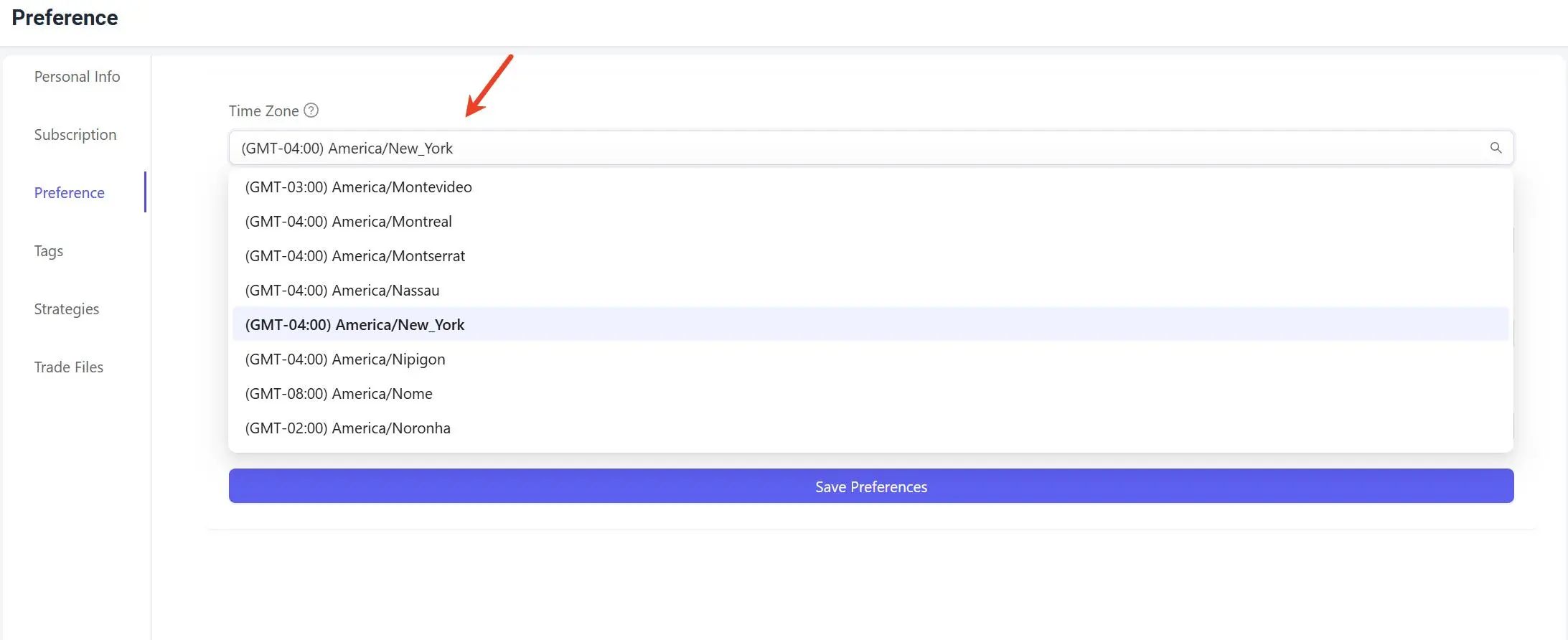
1. Global Time Zone Setting
You can configure your default timezone at:
Settings → Preference → Time Zone
This timezone becomes your default display timezone across the entire platform.
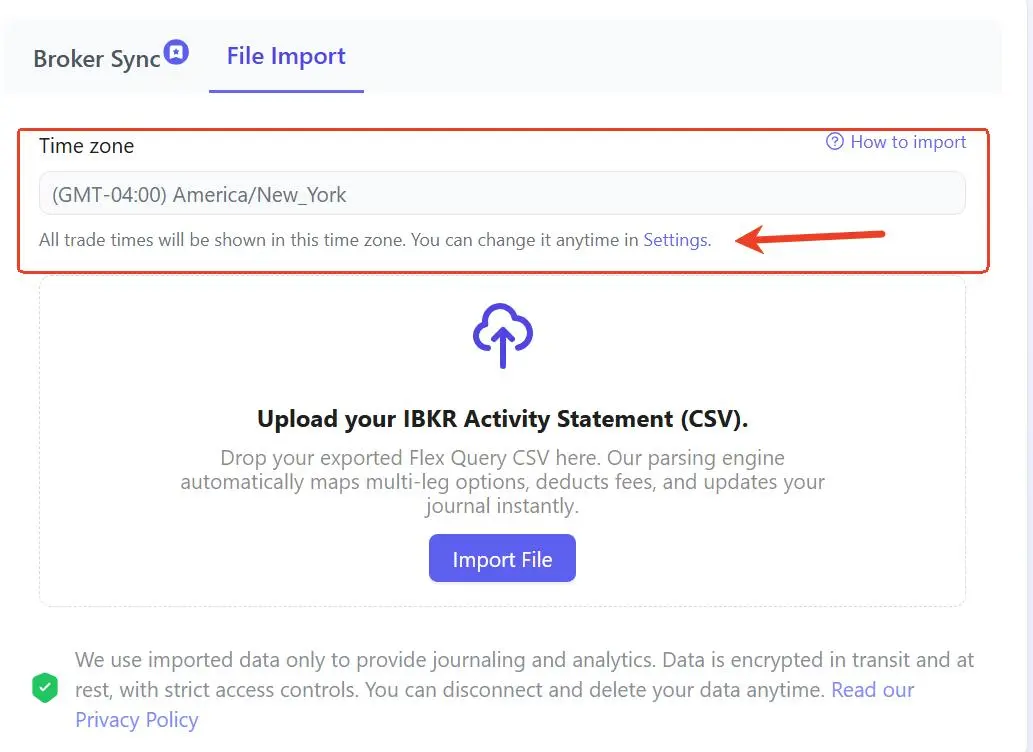
2. Broker Import & Sync Time Zone
During broker file uploads or broker synchronization, TradeBB also displays the currently selected timezone at the top of the import screen.
This timezone is used when imported trade files do not contain timezone information.
How TradeBB Processes Trade Time
TradeBB standardizes all timestamps internally to ensure reports, calendars, and analytics remain accurate across different brokers and regions.
Step 1: Read Broker Trade Time
When importing a broker trade file:
- If the broker file already contains timezone information, TradeBB uses the broker timezone directly
- If the broker file does not contain timezone information, TradeBB uses your selected Time Zone setting
Different brokers export timestamps differently, which is why timezone handling is important.
Step 2: Convert to UTC
After the timezone is identified, TradeBB converts all timestamps into UTC (Coordinated Universal Time) internally.
UTC is used as the system standard to ensure consistent calculations and reporting.
This helps avoid problems caused by:
- Different broker regions
- Daylight saving time changes
- Multi-account imports
- Cross-market trading activity
Step 3: Display Using Your Selected Time Zone
When you view your data inside TradeBB, UTC timestamps are converted into your currently selected display timezone.
This means all displayed times inside:
- Trades
- Calendar
- Reports
- Daily Journal
will follow your selected timezone setting.
Example
For example:
- Broker export timezone: America/New_York
- Trade execution time: 09:30 AM
If your selected timezone inside TradeBB is:
- Asia/Tokyo
the displayed trade time may appear as:
- 10:30 PM Asia/Tokyo
even though the original broker file showed 09:30 AM New York time.
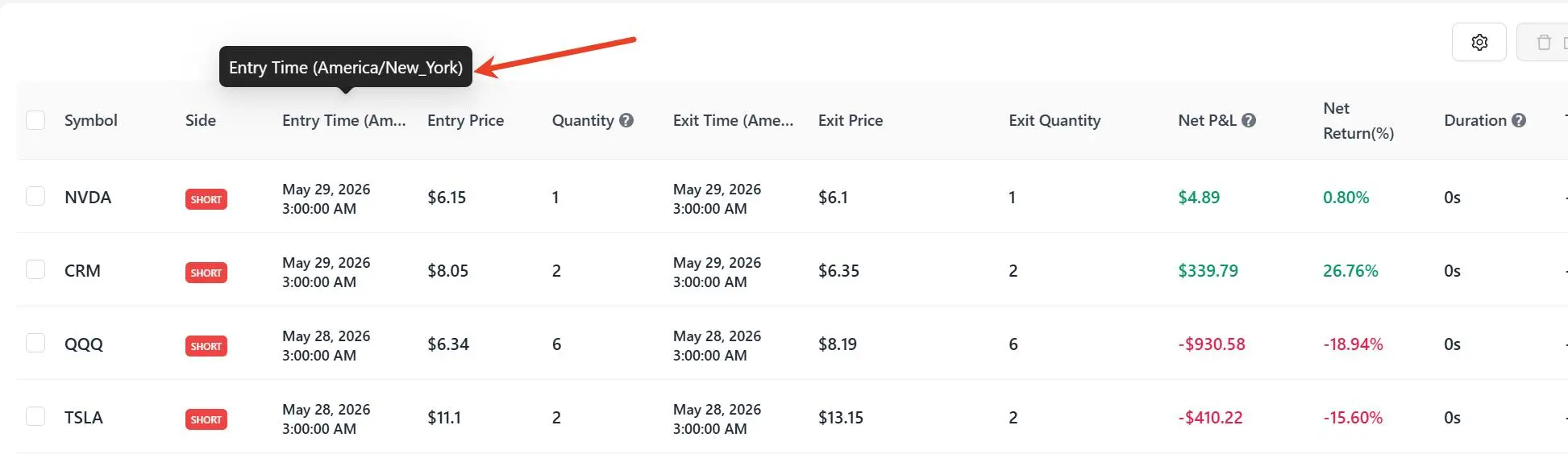
Trade Time Display Example
Inside the Trades page, TradeBB displays the active timezone directly in the trade time column header.
Example:
- Entry Time (America/New_York)
This helps you clearly understand which timezone is currently being used for displayed timestamps.
Important Notes
- Changing your timezone does not modify your original trade data
- TradeBB only changes how timestamps are displayed
- Different timezone settings may affect:Daily trade groupingSession analysisCalendar organizationDaily performance calculations