 TradeBB
 How to paper trade on TradingView

To paper trade on TradingView, open a chart, click Trade, choose Paper Trading and connect. You get a simulated account with virtual money and can place market, limit and stop orders on almost any symbol TradingView charts, without risking anything.
Turning it on takes a minute. Making the practice useful takes a little more: set the account up like your real one, write down why you take each trade, and look back at the results with something better than a balance. This guide covers all of it.
Turn on paper trading
TradingView's paper account is built in and available to all users. To start:
- Open any chart (TradingView calls the chart page Supercharts)
- Click Trade in the top-right corner, or open the trading panel at the bottom of the screen
- Pick Paper Trading from the list of brokers and click Connect
That's it. The trading panel at the bottom now shows your paper account: balance, open positions, orders and history. To leave, open the panel's menu and choose Log out Paper Trading.
Set it up like your real account
This is the step most tutorials skip, and it decides whether your results mean anything. Out of the box, a paper account flatters you in two ways.
The balance is too big. By default the account starts with $100,000 of virtual money. If you'll really trade $5,000, a $100,000 account lets you take positions you could never afford, and the results won't transfer. Use Reset Paper Trading Account in the account menu and enter the amount you actually plan to trade.
There are no fees. Commissions are off by default, so every small trade looks cleaner than it would live. Open Commission Settings in the same menu, tick Include commissions in paper trading, and enter your broker's rate, either as a percentage or a fixed dollar amount per trade.
TradingView's menus move around between versions. If you can't find these, look in the menu under the Paper Trading name on the left of the trading panel.
Place your first paper trade
There are three ways to place an order, and they all reach the same paper account.
- Order ticket — click Buy or Sell, choose market, limit or stop, set the quantity
- On the chart — place an order on a price level, then drag it to adjust
- Depth of market — click a price in the order book ladder
Whichever you use, add a stop loss and take profit on the ticket before you submit. They're optional in TradingView, and that's exactly why to set them every time: a paper trade without a stop teaches you nothing about how you handle a loss.
Write the plan before you click Buy
A paper trade is only practice if there was a plan to practice. Before each entry, write four lines somewhere you'll see later:
- The setup — what you saw and why it qualifies
- Where you're wrong — the price that kills the idea, not just the stop
- Where you take profit — and why there
- The size — the same size you'd use with real money
After the trade, add one honest line: did you follow the plan? That line is what you'll learn from, far more than the profit or loss.
Export your paper trading history
TradingView keeps your paper trades in the History tab of the trading panel, and you can download them as a CSV file:
- Open the trading panel and go to the History tab
- Click the three dots on the tab and show all columns
- Click the Paper Trading name on the left of the panel to open its menu
- Choose Export data…, select History, and click Export
The file is named something like paper-trading-order-history-all-…csv. Export once a week, and always before you reset the account, so no practice session is lost.
Review it in a journal, separate from live trades
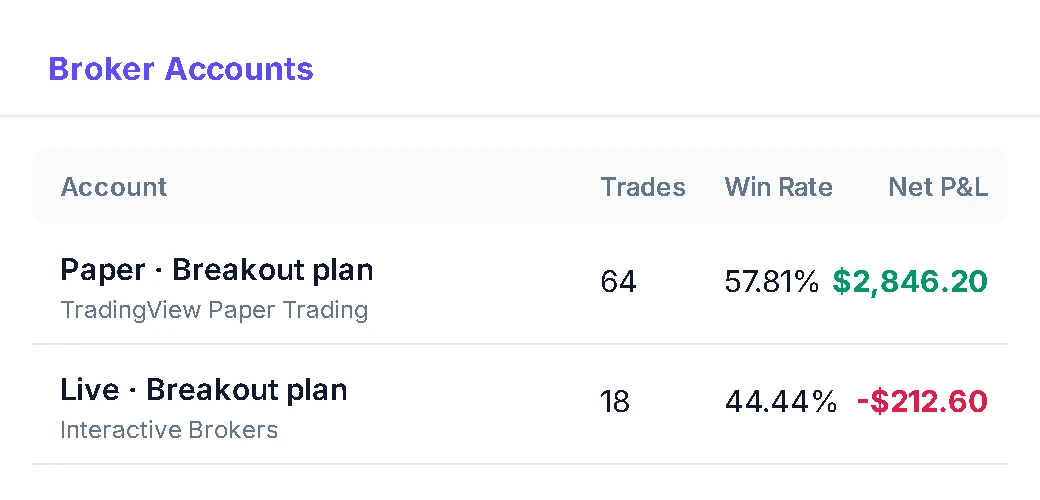
A CSV of paper trades is a list. To learn from it, put it somewhere that can sort it by setup, show your mistakes and keep the notes next to the trades. A paper trading journal does that: in TradeBB you choose TradingView as the platform, upload the History file, and the trades land in their own account.
Keeping them apart matters. Paper results mixed into live numbers make both useless. In separate accounts they sit side by side, so the day you go live you can compare the same plan in both.
The full export and upload steps, with troubleshooting, are in How to import your TradingView trades.
Import your TradingView paper trades →
When to move from paper to live
There's no fixed number of practice trades. Move a plan to real money when your record, not your balance, says it's ready:
- You've traded it in both quiet and volatile weeks
- Your actual exits are close to the targets and stops you planned
- The same mistakes show up less often than they did a month ago
Then start live with a small size and keep the journal going. Paper trading can't reproduce the pressure of real money, so your first live month is a new test, not a formality. For a review routine that works on both, see how to keep a trading journal.
Frequently asked questions
Yes. TradingView makes its paper trading account available to all users.
Yes. TradingView makes its paper trading account available to all users.
No. Orders are simulated against TradingView's market data, and the balance is virtual. Nothing you make or lose is real, which is why the habits matter more than the result.
No. Orders are simulated against TradingView's market data, and the balance is virtual. Nothing you make or lose is real, which is why the habits matter more than the result.
Yes. Use Reset Paper Trading Account in the paper account's menu and enter a new starting balance. Export your History first, so your practice record survives the reset.
Yes. Use Reset Paper Trading Account in the paper account's menu and enter a new starting balance. Export your History first, so your practice record survives the reset.
Not by default. Turn on Include commissions in paper trading under Commission Settings and enter your broker's rate.
Not by default. Turn on Include commissions in paper trading under Commission Settings and enter your broker's rate.
Backtesting is different: it runs a strategy over past data, while paper trading is you making decisions in real time. Both are useful. If you backtest with a strategy script, its list of trades can be exported and reviewed in its own journal account too.
Backtesting is different: it runs a strategy over past data, while paper trading is you making decisions in real time. Both are useful. If you backtest with a strategy script, its list of trades can be exported and reviewed in its own journal account too.
Practice on TradingView. Review it like it's real.
Bring in your paper trades and see what you're actually practicing.