 TradeBB
XM MT4 and MT5 trades, synced read-only into your journal
Your XM account runs on MetaTrader, and TradeBB connects to it by server name with a read-only password. Your trades come in with swap and commission counted, and MetaTrader can stay closed.
How it connects
Find your XM server, then connect in five steps
- Find your MT4 or MT5 login number and server name. 🔶 They're in the email XM sent when you opened the account, and at the bottom of your MetaTrader window. XM servers start with XMGlobal
- 🔶 Set a read-only (investor) password for the account
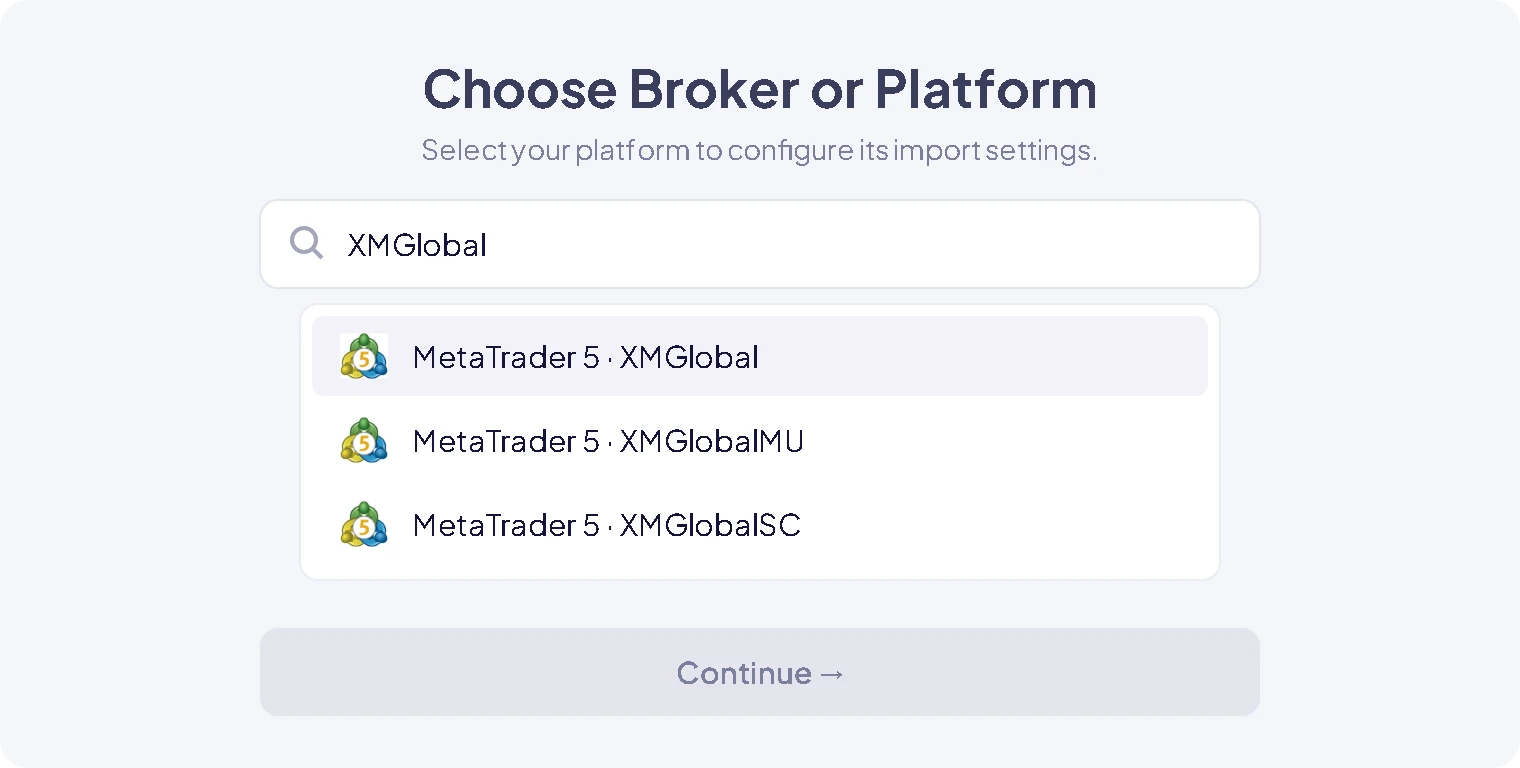
- In TradeBB, open Import Trades → Add broker account and search for XMGlobal
- Pick the entry that matches your server: XMGlobal, XMGlobalMU or XMGlobalSC, for MetaTrader 4 or 5
- Enter your login number and read-only password, and choose how far back to import, up to the last 12 months
- Read-only — that password can view trades but not place them
- Nothing to install — no Expert Advisor, no script
- MetaTrader can stay closed — the connection is to XM's server, not your computer
Three passwords
Which XM password goes where
XM traders often mix these up, so here's which is which:
- Members Area password — for logging in to XM's website. Not used by TradeBB
- Trading password — for MetaTrader, it can place trades
- Read-only (investor) password — for MetaTrader, it can only view. This is the one to give TradeBB
Your trading password would connect too, but read-only is all a trading journal needs, and it means nothing can ever trade from it.
Upload instead
No connection needed: upload an XM MetaTrader report
- MT5: open the Toolbox → History tab, right-click, choose Report → HTML, and save the file
- MT4: open Account History, right-click, and choose Save as Detailed Report
Then in TradeBB, open Import Trades → Upload file and drop it in. Same journal, a few more steps each time, nothing stays connected.
After it's in
Every trade recorded, in your own time zone
- Every trade on record — pair, lots, entry and exit, swap and commission, without typing
- Win rate and P&L by pair — including gold, on its own
- In your time zone — MetaTrader shows XM's server time; set yours once in TradeBB, IST included 🔶
- Mistakes that repeat — tag revenge trades or moved stops, and see what each cost
- MT4 and MT5 side by side — add each XM account separately
- Bonus credit kept apart — recorded on its own, never counted as profit
Pairs, gold and sessions get their own page, the forex trading journal. How the MetaTrader connection works: the MT4 trading journal and MT5 trading journal.
FAQ
Frequently asked questions
Which XM entry do I pick in TradeBB?
The one that matches the start of your server name: XMGlobal, XMGlobalMU or XMGlobalSC, for MetaTrader 4 or 5.
Which password do I use?
Your read-only (investor) password for MetaTrader, not your Members Area password.
Do I need to keep MetaTrader open?
No. TradeBB connects to XM's server, so MetaTrader can stay closed and nothing needs to be installed.
Could TradeBB open or close a trade on XM?
No. With the read-only investor password, MetaTrader lets TradeBB view your trades and nothing else.