

Mentor Mode allows mentors to invite students and review the trading data that students choose to share.
This is useful for coaches, mentors, trading educators, and accountability groups who want to review student performance inside TradeBB.
Students must accept your invitation before you can view their shared trading data.
Step 1: Select “I’m a Mentor”
When you open Mentor Mode for the first time, choose:
I’m a Mentor
Then click:
Invite Student
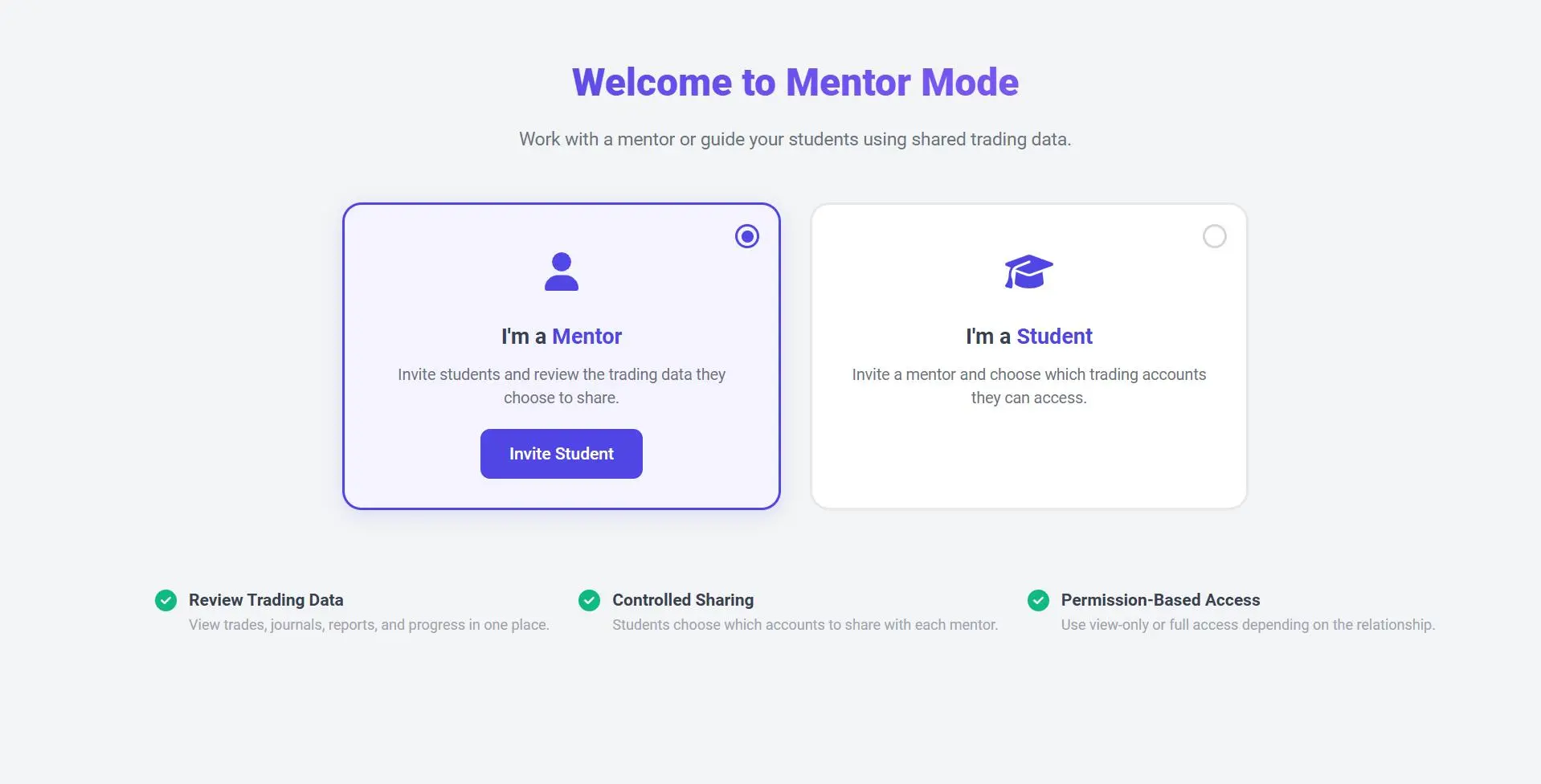
Mentor Mode supports two roles:
- Mentor: Invite students and review shared trading data
- Student: Accept mentor invitations and choose what to share
Step 2: Enter the Student’s Email
In the Invite Student popup, enter the student’s email address.
Then click:
Send Invite
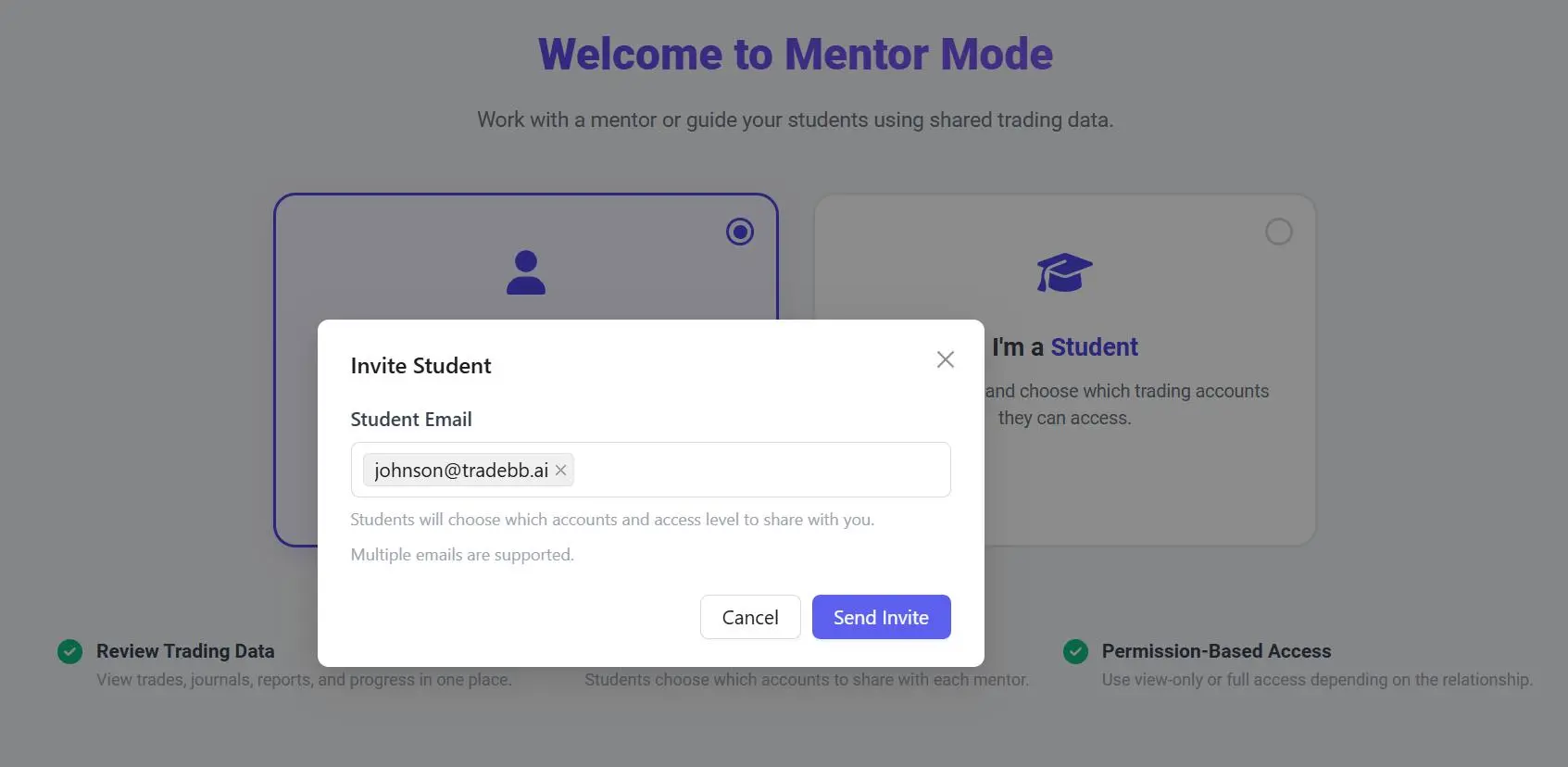
You can invite one or more students. After the invitation is sent, the student will need to review and accept the request before access is granted.
Step 3: Student Accepts the Invitation
After you send the invitation, the student will see the request inside their Mentor Mode page.
The student can either:
- Accept the request
- Decline the request
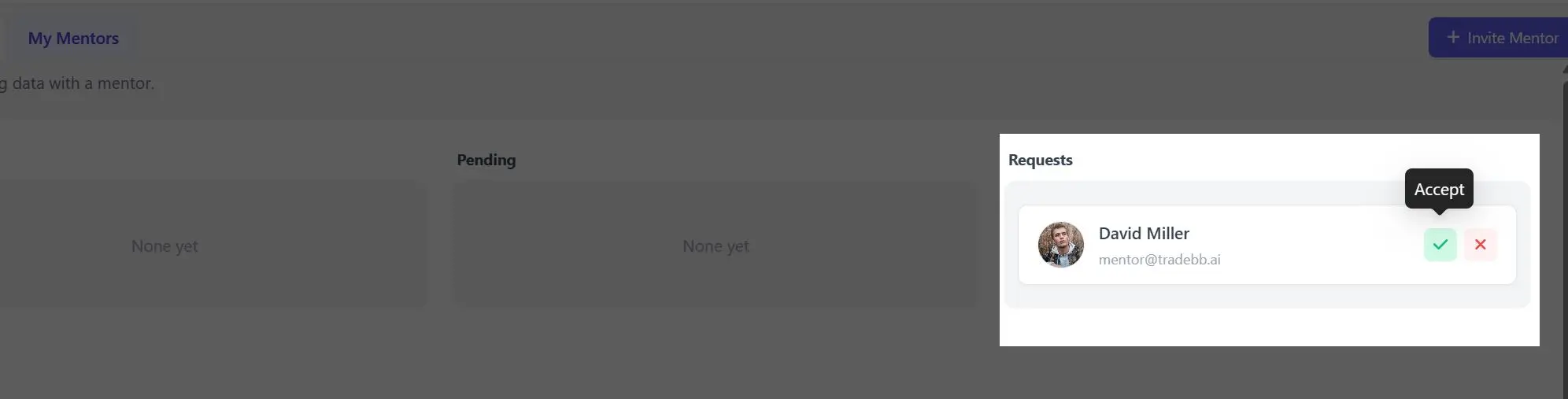
A mentor cannot view a student’s data until the student accepts the invitation.
Students control which trading accounts and access level they share with each mentor.
Step 4: View Your Student List
Once the student accepts your invitation, they will appear under:
Mentor Mode → My Students
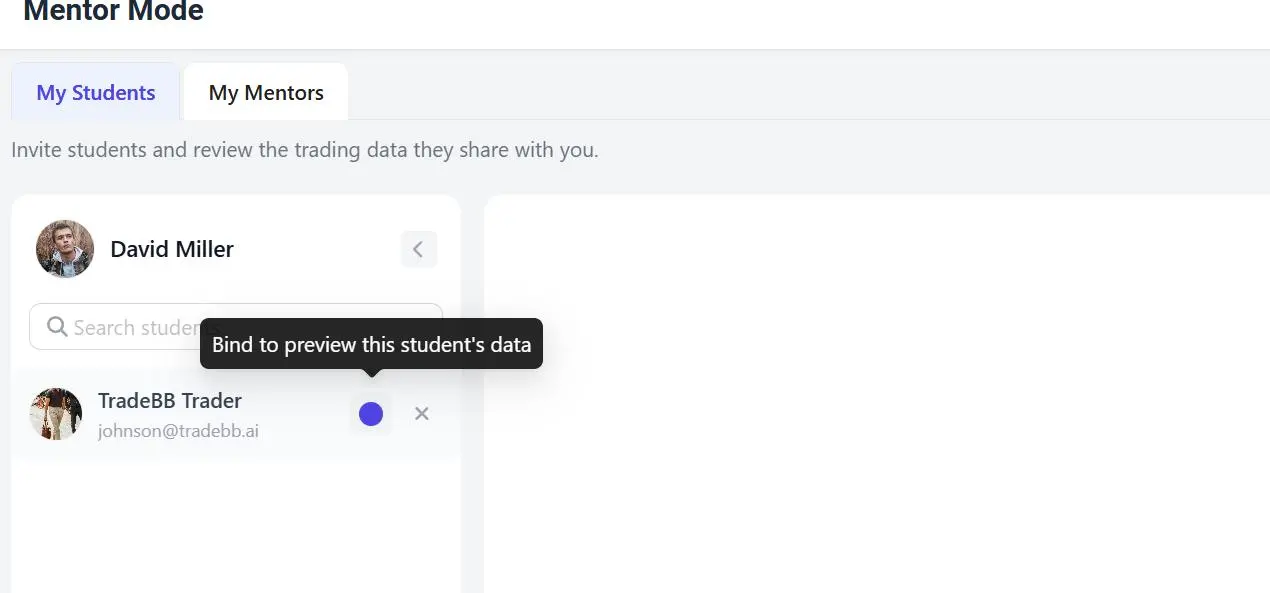
From this page, you can search for students and select a student to preview their shared data.
Step 5: Enter Student View
Click the preview button next to the student.
TradeBB will switch into the student’s shared account view.
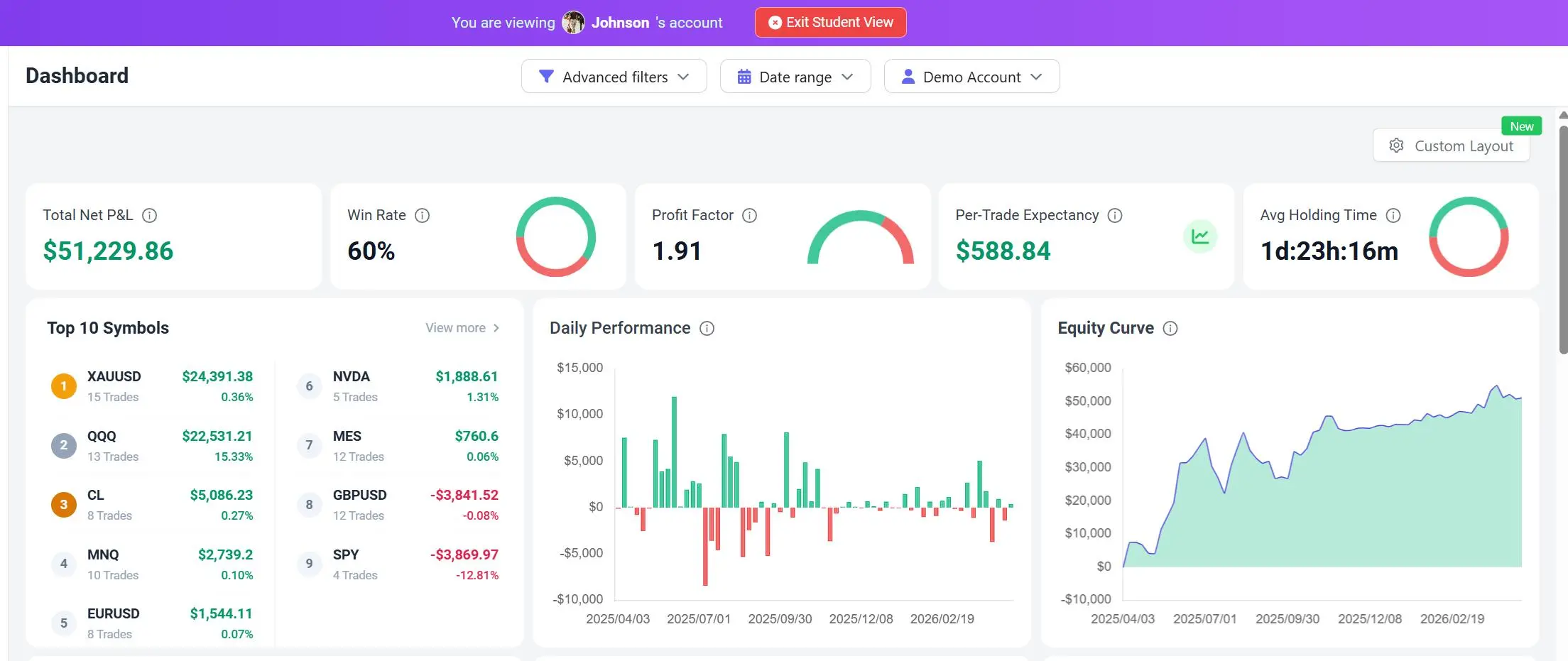
When you are viewing a student account, TradeBB displays a banner at the top of the page so you know you are currently viewing another user’s shared data.
You can click:
Exit Student View
to return to your own account.
What Mentors Can Review
Depending on the data and permissions shared by the student, mentors may be able to review areas such as:
- Dashboard
- Trades
- Calendar
- Reports
- Daily Journal
- Notes
- Trading progress
This allows mentors to review student performance, identify patterns, and provide feedback based on actual trading data.
Important Notes
- Students must accept your invitation before you can view their data.
- Students choose which accounts and access level to share.
- You will see a clear banner when viewing a student account.
- You can exit Student View at any time.
- If a student does not appear in your list, they may not have accepted the invitation yet.